Create accurate site plans without a surveyor on every visit
.svg)

Quick Summary
Site plan software creates scaled layouts showing property boundaries, structures and site features for permits and construction documentation. Options range from browser-based tools with drag-and-drop templates to CAD programs to reality capture platforms that generate plans from drone imagery and 360 photos. Your choice depends on accuracy requirements, project complexity and how often plans need updating.
Scheduling a surveyor for every site update gets expensive fast, especially on projects where conditions change weekly. Most teams end up with outdated documentation or gaps in their records because frequent surveys aren't practical. Site plan software offers a way to generate accurate, scaled site documentation without a surveyor on every visit. Teams using reality capture technology can update plans as conditions change, maintaining current records throughout the build.
This guide covers the types of site plan tools available, how reality capture compares to traditional drawing software and what accuracy you can realistically expect.

What site plan software does on construction projects
Site plan software produces scaled drawings that show what exists on a property and what's planned for construction. A typical site plan includes lot boundaries, existing structures, proposed work, utilities, access points and landscaping elements. Teams use site plans for permit applications, subcontractor coordination, owner updates and closeout documentation.
The software category covers a wide range of tools. Browser-based site plan creators let you drag and drop symbols onto aerial imagery for quick permit sketches. CAD programs like AutoCAD and SketchUp handle complex drafting with precise dimensions. Reality capture platforms generate plans from drone imagery and 360 photos, documenting actual ground conditions rather than drawing from scratch.
A site plan typically includes:
- Property boundaries: Legal lot lines, setbacks and easements
- Existing conditions: Buildings, utilities, trees and topography
- Proposed work: New construction, grading, paving and landscaping
Types of site plan software and when to use each
Online site plan creators and templates
Browser-based tools like Site Plan Creator (any others worth mentioning?), work well for straightforward residential permits and quick plot plan drawings. You start with satellite imagery of your property, then add symbols for structures, driveways, fences and landscaping from a pre-loaded library.
Export options typically include PDF, and pricing tends to be lower than professional software. The tradeoff is precision. Online creators work fine when you want a basic layout showing setbacks and proposed additions, but accuracy depends entirely on your measurements and placement. For a deck permit or fence installation, that's often enough.
CAD and BIM drawing programs
AutoCAD, Revit, SketchUp and Vectorworks handle detailed site plan design where precision matters. Architects, engineers and surveyors use CAD programs to produce construction-ready drawings with exact dimensions, elevation data and layer organization. The learning curve is steeper and licensing costs are higher, but the output meets professional standards.
If you're producing site plans for commercial projects, phased construction or anything requiring engineering stamps, CAD software is typically the baseline expectation. Many permit offices specifically request DWG files for larger projects.
Reality capture platforms for as-built site plans
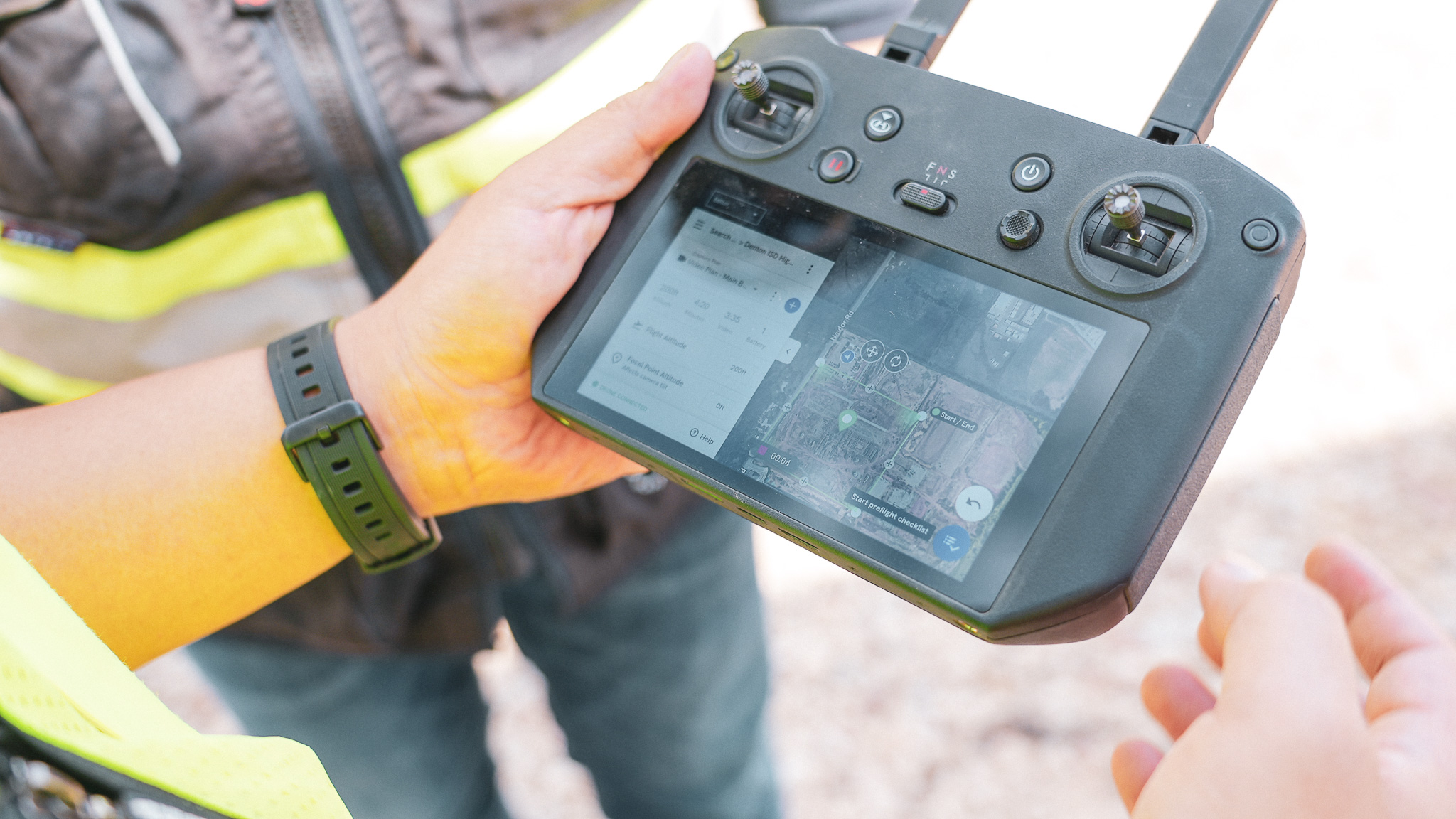
Reality capture takes a different approach by documenting what actually exists on site rather than drawing it from scratch. Drones capture aerial imagery that gets processed into orthomosaic maps, which are scaled, georeferenced overhead views of the entire site. An orthomosaic stitches hundreds of overlapping photos into a single image where every pixel has real-world coordinates. Ground-level 360 cameras add interior and detail documentation.
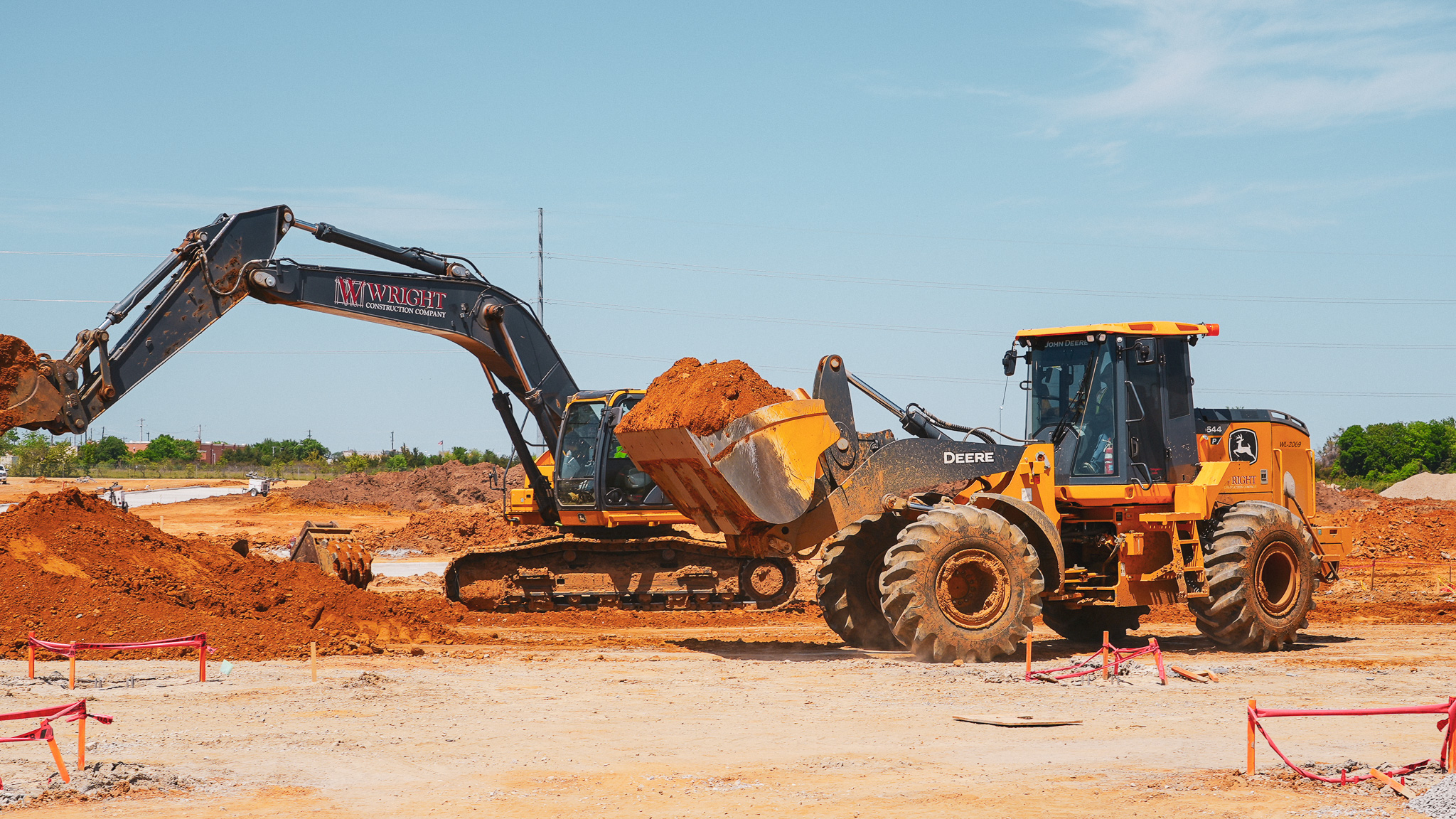
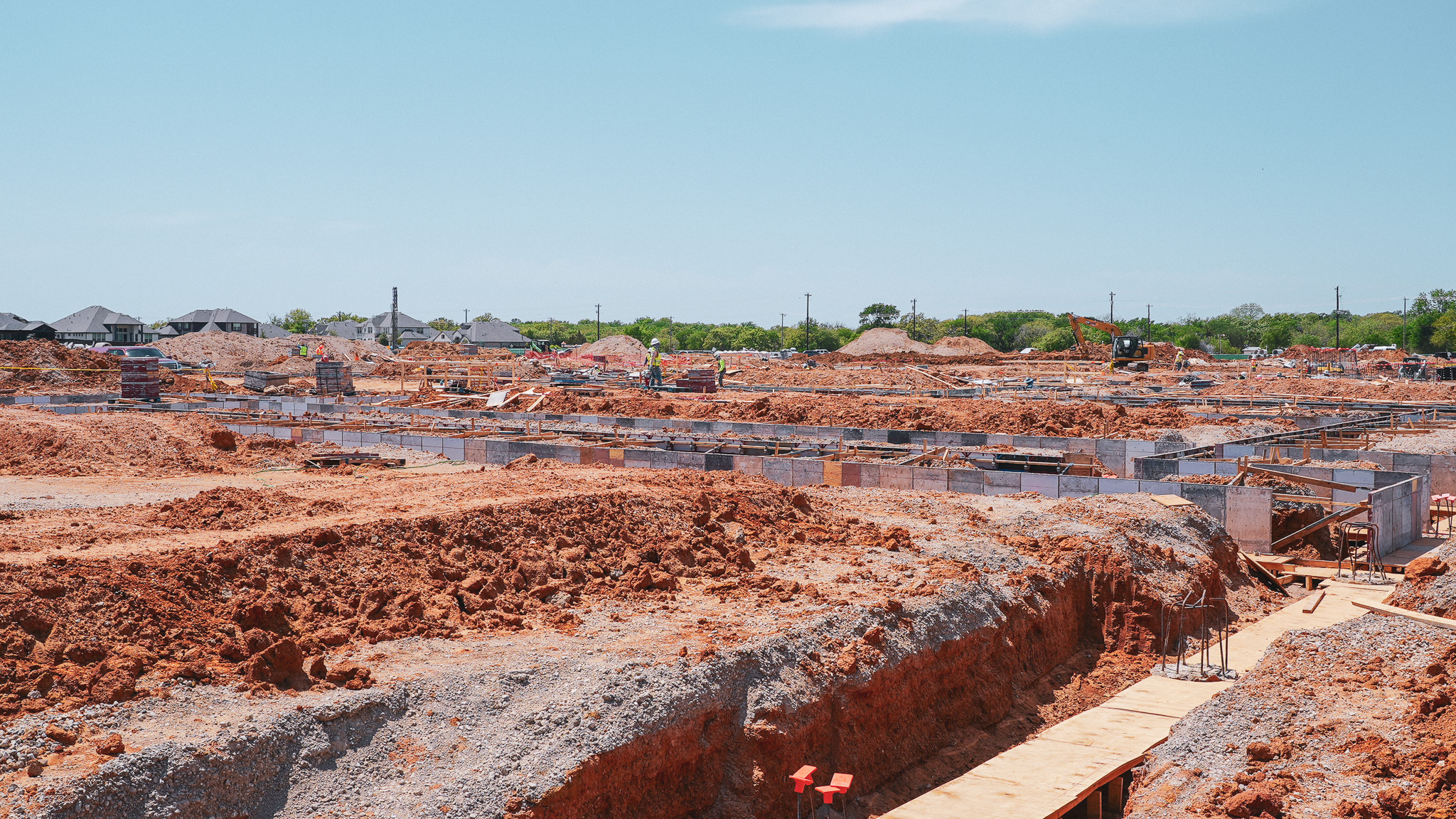
This approach works particularly well when you need to update site plans repeatedly as conditions change. The process looks something like thsi: A commercial developer flies their sites weekly during grading and foundation work, generating current documentation within hours instead of scheduling a surveyor for every update. The captured data also serves as a permanent record of conditions at each phase.
%20(1).jpg)
How to create a site plan using reality capture
1. Define the capture area and flight path
Start by setting the boundaries of what you want to document. In most flight planning apps, you draw a polygon around the site on a map, then the software calculates the flight path to cover that area with sufficient image overlap. For a typical commercial site, planning takes a few minutes.
2. Capture aerial imagery or 360 ground photos
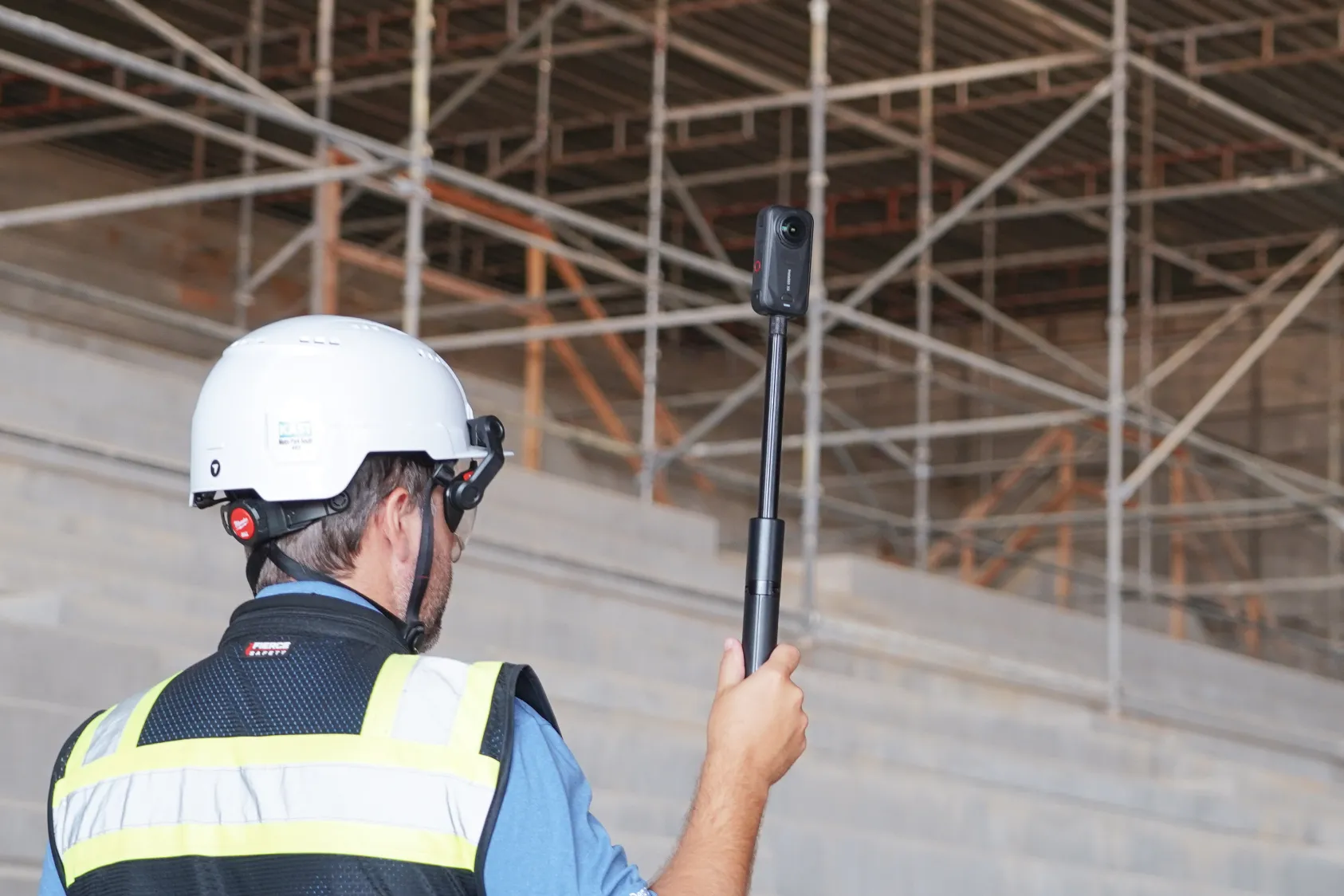
The drone flies the planned path automatically, capturing hundreds of overlapping photos. Flight time depends on site size, but most commercial parcels take 15 to 30 minutes. For interior spaces or ground-level detail, 360 cameras capture walkthroughs that get mapped to floor plans.
3. Process data into orthomosaic maps and models
Processing software stitches the images together into a single, scaled orthomosaic. The overhead view is georeferenced, meaning every pixel has real-world coordinates. The same data can generate 3D models, elevation maps and point clouds depending on what you need.
4. Import design files and add annotations
With the orthomosaic as your base layer, you can overlay CAD drawings to compare design intent against actual conditions. Add dimensions, labels, boundary lines and notes directly on the map. This step turns raw capture data into a usable site plan.
5. Export site plans for permits or documentation
Export options typically include PDF for general sharing, georeferenced images for GIS systems and DWG for CAD compatibility. Most permit offices accept PDF submissions, though requirements vary by jurisdiction. Check with your local permitting authority before finalizing your export format.
Key features to look for in a site plan maker
The right features depend on how you'll use the plans. For permit applications, scaling and export formats matter most. For ongoing construction documentation, measurement tools and overlay capability become more important.
- Scaling options: Set architectural or metric scales that match permit requirements
- Export formats: PDF, DWG, PNG or georeferenced outputs for different stakeholders
- Overlay capability: Import CAD or BIM files to compare design against actual conditions
Tip: If you're updating site plans throughout a project, look for software that maintains historical captures. Being able to reference what the site looked like three months ago often matters as much as current conditions.
How accurate is site plan software compared to traditional surveys
Accuracy varies significantly across software types. Online site plan creators depend entirely on your measurements and placement, so accuracy reflects your input. CAD programs produce precise drawings, but again, accuracy depends on the source data you're working from.
Reality capture with RTK-enabled drones and ground control points reaches survey-grade accuracy, typically within 1 to 2 centimeters. RTK stands for Real-Time Kinematic positioning, which uses satellite signals and a base station to correct GPS data in real time. Ground control points are surveyed markers placed on site that the software uses to verify accuracy during processing.
This level of precision works for most construction documentation, progress verification and quantity calculations. However, legal boundary surveys still require a licensed surveyor in most jurisdictions, and certain permits may specifically require surveyor-stamped drawings. The practical question is whether you need a surveyor for every site visit or just for establishing control points initially.
Comparing as-built conditions against design intent
One of the most practical uses for site plan software is overlaying captured conditions on design files. You import the CAD drawing or BIM model, align it to the orthomosaic and immediately see where reality differs from the plan. This comparison takes minutes and reveals discrepancies that might otherwise go unnoticed until later phases.
This comparison catches issues early. You might find footings poured in the wrong location, utilities installed off-plan or grading that doesn't match design elevations. The visual overlay makes discrepancies obvious without requiring detailed measurement of every element. Teams reference comparisons during coordination meetings, owner updates and subcontractor discussions.
How DroneDeploy works as a site plan generator for construction
DroneDeploy captures sites from the air and ground, then processes that data into scaled maps, 3D models and documentation that teams reference throughout a project. The platform combines aerial drone flights with 360 ground captures in a single system, so you're not managing separate tools for different capture types. Everything lives in one place, accessible to anyone on the project team.
For site plan generation, the workflow includes:
- Aerial capture: Drone flights generate orthomosaic maps with RTK accuracy
- Ground documentation: 360 walks capture interior conditions and ground-level detail
- Design overlay: CAD and BIM files import for comparison against actual conditions
The captured data becomes a permanent record. When questions come up about what was installed before concrete was poured or what conditions looked like before grading started, the historical captures are there to reference. Teams can pull up any previous capture to verify conditions at a specific point in time.
.png)
FAQ
Drone-captured orthomosaics provide georeferenced base maps that teams overlay with annotations, boundaries and design files. The imagery shows actual site conditions at the time of capture, which often matters more than outdated aerial photography from mapping services. Most teams find the current imagery more useful than satellite photos that may be months or years old.
RTK-enabled capture with ground control points reaches survey-grade accuracy within 1 to 2 centimeters, suitable for most construction documentation. Legal boundary surveys and certain permit types still require licensed surveyors, but routine site documentation typically does not. For progress tracking and as-built records, reality capture accuracy meets the needs of most projects.
Most permit offices accept PDF submissions for site plans. Some jurisdictions request DWG files for larger commercial projects, and a few require specific formats for GIS integration. Check local requirements before finalizing your submission format.
Update frequency depends on project complexity and phase. Many teams capture weekly during active construction, with additional captures before and after key milestones like foundation pours, underground utility installation and major grade changes. Some projects require daily captures during critical phases when conditions change rapidly.
Commercial drone operations in the US require FAA Part 107 certification. Some organizations train internal staff for certification, while others use capture services that provide licensed pilots and equipment for scheduled flights. The certification process involves a knowledge test and can typically be completed within a few weeks.

Ready to learn more?
Contact sales to see how DroneDeploy can give your teams the power to document and analyze your sites from the air and ground – all in one AI-powered platform.